BRICKS BUILDER · MEASUREMENT GUIDE
Google Ads conversion tracking for Bricks Builder
Measure successful form enquiries with Google Tag Manager, keep phone and email clicks separate, and check your setup before you publish.
A form button click is an attempt. A successful Bricks response is a stronger signal that your enquiry form completed. This guide uses that response to send a named event into GTM, then fire a Google Ads conversion tag.
The recommended route is direct Google Ads tracking. GA4 is optional for parallel reporting. This is a lead-form guide; WooCommerce purchases need their own order, value and transaction-ID implementation.
01
Bricks form succeeds
02
GTM receives the event
03
Google Ads tag fires
1. Check your starting point
You need access to the Bricks form, the website’s GTM web container and the Google Ads account. Work in a separate GTM workspace where possible, and record the current published version so you can recover your previous setup.
- A working enquiry form, with the intended Bricks actions configured and checked.
- GTM installed once on the website. Confirm the container in Tag Assistant before adding another copy.
- The internal Bricks form element ID, such as abc123. The default HTML ID may look like brxe-abc123; use the elementId value emitted by Bricks in the listener.
- A Google Ads conversion action and permission to edit its tag setup.
- Your site’s consent manager and measurement settings, so testing includes both consent states.
Know which ID you are using
- GTM-… identifies the Tag Manager container.
- G-… is a GA4 measurement ID. GT-… is a Google tag ID.
- AW-… identifies a Google Ads tag destination.
- The conversion ID and conversion label identify the Ads conversion tag’s destination/action; copy them from your own action’s GTM instructions.
Choose one primary conversion source
This walkthrough sends the form success directly to Google Ads through GTM. You can instead send a GA4 event and create an Ads conversion from that event. Choose one source as the primary action for the same lead outcome; review any existing imported action before switching.
Do not leave both the direct action and its GA4 equivalent as primary without deliberately reviewing how campaign goals count them. Your reporting and bidding can otherwise treat the same enquiry as two conversion actions. Google explains the GA4 conversion route.
2. Create the Google Ads lead conversion
In Google Ads, open Goals → Conversions and create a website conversion. Follow the available setup flow for your account and select the category for a submitted lead form. Menu labels can vary; the important outcome is an event-based lead action you can trigger from GTM.
- Name it clearly, for example “Bricks enquiry — successful submission”.
- For lead generation, choose One when you want one counted lead per ad interaction for that action. Purchases commonly need a different counting approach.
- Use a defensible lead value, or choose not to use a value. An arbitrary $1 is not evidence of what an enquiry is worth.
- Review the attribution and conversion-window settings against the business’s sales process.
- Save the action and open its Google Tag Manager setup instructions. Keep its conversion ID and label together. If an integration offers to add the tag to GTM, review that workspace before adding anything manually.
Use a secondary action while validating a replacement where appropriate, then deliberately select the intended campaign goal when the setup is ready. Primary actions influence bidding when their goal is used; secondary actions are generally observational, with a custom-goal exception. Read Google’s primary/secondary guidance.
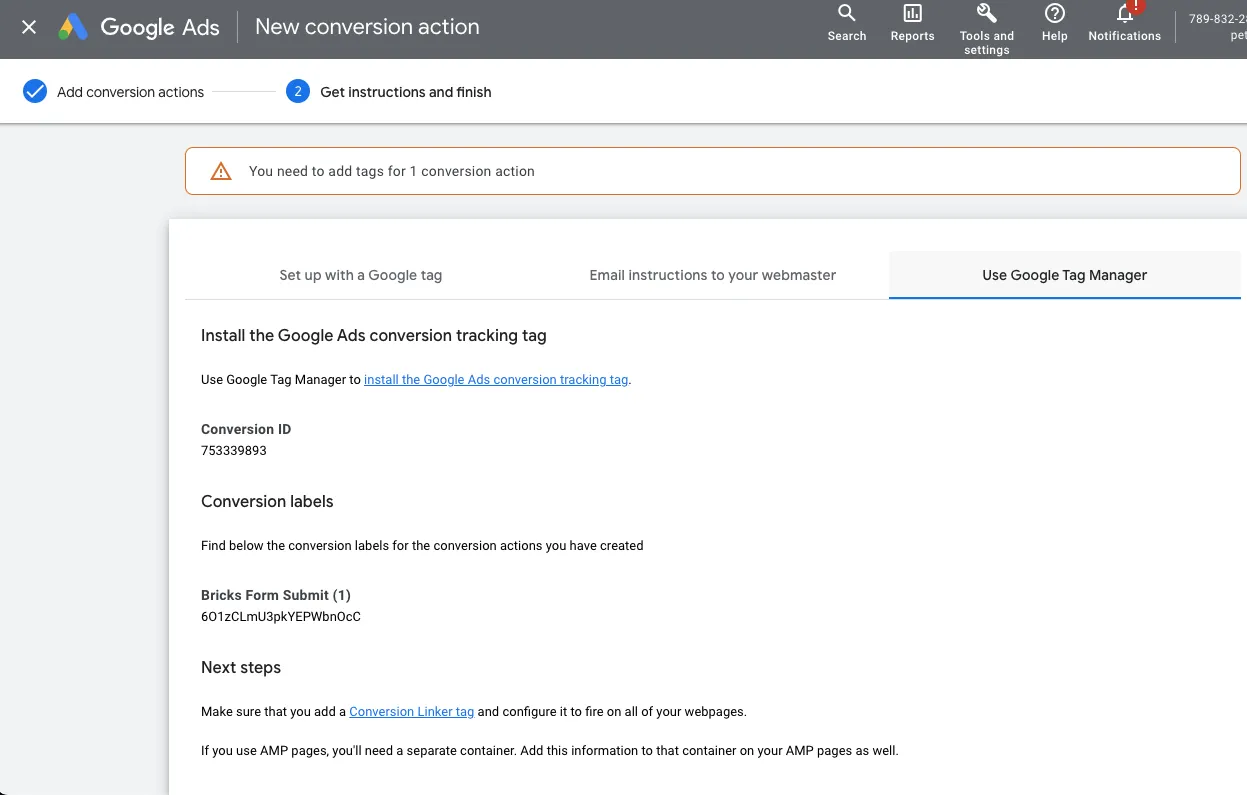
Reference from the original guide: the conversion ID and label are a pair. This is an older interface; use your own action’s current instructions and values.
3. Check the existing Google tag setup
Open GTM Preview and inspect the current installation before creating new tags. Confirm the website is connected to the intended Google Ads destination. If Google’s setup diagnostics ask you to install or connect a Google tag, follow that destination’s current instructions.
For a separate GA4 reporting destination, use the current Google tag/Google Analytics destination setup. The older “Google Analytics: GA4 Configuration” screenshots no longer describe the current setup flow. Google’s Analytics setup documentation covers the available destination options.
Check click-information linking as well. Where a standalone Conversion Linker is required, it normally runs on All Pages. Google tags can already provide this function in supported setups, so inspect what is installed instead of duplicating it. Review cross-domain settings only if the visitor journey actually crosses domains. Conversion Linker documentation.
Keep consent decisions in the consent manager
Keep consent defaults and updates ahead of measurement tags. Respect the permissions required by your implementation, and test granted and denied states. The listener below does not grant consent. Do not weaken consent checks simply to make a debugging request appear.
4. Capture the intended Bricks form success
Bricks exposes separate submit, success and error events. The submit event starts an attempt; success follows a successful AJAX response. Use success as the conversion signal, restricted to the form you actually want to measure. Bricks documents the form events and elementId.
Create one GTM Custom HTML tag for the listener below. Replace abc123 with your form’s elementId. For several genuine lead forms, put each ID in the allowedForms array. Fire the listener on Initialization for the relevant pages so it is present before someone submits. Add it once through GTM; do not also paste the same listener into the page.
Find your Bricks form ID
- Open the page in Bricks and select the native Form element, rather than one of its fields.
- Use Copy: Bricks ID in the element panel or right-click menu when available. Paste the bare internal ID into
allowedForms; do not use a form field ID. - To check it on the public page, inspect the form in your browser’s developer tools. A native Bricks form uses
data-script-idfor its internal ID. A custom CSS ID can be different.
<form id="quote-form" data-script-id="abc123">

Use in allowedForms: ['abc123']
Illustrative example: abc123 is the internal Bricks ID; quote-form is a custom HTML/CSS ID. With the default HTML ID brxe-abc123, the internal ID is still abc123. Replace the example with your own ID.
<script>
(function () {
  if (window.__bricksLeadTrackingInstalled) return;
  window.__bricksLeadTrackingInstalled = true;

  // Replace abc123 with your Bricks form element ID.
  var allowedForms = ['abc123'];
  var pending = {};

  document.addEventListener('bricks/form/submit', function (event) {
    var id = event.detail && event.detail.elementId;
    if (allowedForms.indexOf(id) !== -1) pending[id] = true;
  });

  document.addEventListener('bricks/form/error', function (event) {
    var id = event.detail && event.detail.elementId;
    if (allowedForms.indexOf(id) !== -1) pending[id] = false;
  });

  document.addEventListener('bricks/form/success', function (event) {
    var id = event.detail && event.detail.elementId;
    if (allowedForms.indexOf(id) === -1 || pending[id] !== true) return;
    pending[id] = false;

    window.dataLayer = window.dataLayer || [];
    window.dataLayer.push({
      event: 'bricks_lead_success',
      bricks_form_id: id
    });
  });
})();
</script>
To copy manually, select the full example from <script> to </script>, then use your browser’s Copy command. On a phone, touch and hold the code to select it. Replace abc123 before installing.
The guard prevents a second installation on the same page. The pending flag permits one success push per observed submit attempt and resets for another attempt. This is a basic browser-side guard; it is not persistent lead or order deduplication.
Only the event name and technical form ID are pushed. Do not add names, email addresses, phone numbers or message contents to this event. The code is shown as a copyable example here; reading this article does not install it on your website.
Why use the event instead of .success visibility?
A generic success-message selector may match another component, depend on a message entering the viewport, or fail when the form redirects immediately. A form-specific success event avoids that dependency. Automatic GA4 form_submit reporting also needs validation with AJAX forms; it is not a substitute for checking the Bricks response.
A successful response still does not prove inbox delivery or lead quality. Check the configured form actions and actual enquiry record separately. If the form redirects, test that the event and tag complete in the real redirect flow; a listener alone does not guarantee a network request finishes before navigation.
5. Connect the event to Google Ads in GTM
GTM setup at a glance
Use these settings alongside the steps below. Names shown here match the guide’s example.
- Listener
- Custom HTML tag containing the displayed listener. Trigger: Initialization on the relevant pages, installed once.
- Event name
bricks_lead_success— match this exactly in the Custom Event trigger; regular-expression matching off.- Form filter
- For separate actions per form: Data Layer Variable
bricks_form_id, Version 2. Filter by the intended form ID. - Trigger name
- CE — Bricks lead success
Type: Custom Event. - Conversion tag
- Google Ads Conversion Tracking
Use the conversion ID and label from the same action in your own Ads account. - Tag fires on
- CE — Bricks lead success, rather than an All Pages trigger.
Create the Custom Event trigger
- Go to Triggers → New → Custom Event.
- Set the event name to bricks_lead_success, exactly as written in the listener. Leave regular-expression matching off.
- Name it “CE — Bricks lead success”. All Custom Events here means all occurrences of that named event, not every event in the container.
- For separate actions per form, create a Data Layer Variable named bricks_form_id using Version 2, then filter Some Custom Events by that variable’s exact form ID.
Create the conversion tag
- Go to Tags → New → Google Ads Conversion Tracking.
- Enter the conversion ID and label from the same Google Ads action. Follow the field’s format instructions rather than copying an example ID.
- Choose the “CE — Bricks lead success” trigger. A lead conversion tag should not fire on every page view.
- Use value/currency settings only where you have chosen a meaningful value. Do not invent a transaction ID or use the same fixed ID for every enquiry.
- Save the tag with a descriptive name, then check Preview before publishing.

Original GTM reference: put the conversion ID and label into the Ads conversion tag. Use the new Custom Event trigger from this guide; the old visibility-trigger instructions have been replaced. Open the image for a larger view.
Optional: send the same success to GA4 for reporting
Create a Google Analytics: GA4 Event tag using the existing GA4 destination. A suitable reporting event is generate_lead, triggered by the same Custom Event. Add bricks_form_id as an event parameter if useful; register a custom dimension if you need it in GA4 reports. Keep this reporting route distinct from the primary Ads action.
Do not also treat an automatic form_submit, a thank-you page view and the direct Ads event as three primary conversions for one enquiry. If you use the GA4 import route instead, configure that deliberately and review the previous direct action.
6. Test the whole journey, then publish
Use GTM Preview and Tag Assistant on a staging site where possible. A real live form test can send email and create an enquiry: use an agreed test identity, mark it clearly and keep it out of qualified-lead uploads. Do not fabricate an ad click ID to simulate paid attribution.
Before publishing, confirm all of these
- Untouched page: no bricks_lead_success event and no lead conversion tag.
- Invalid form or failed AJAX response: no success event and no lead conversion.
- Intended valid submission: one named dataLayer event and one conversion-tag firing.
- Different form: no conversion unless its ID was deliberately included.
- Repeated listener installation or repeated success callback: no extra event for the same attempt.
- A new intentional submission: handled as a new attempt; understand how Ads “One” counting differs from tag firings.
- Redirecting form: the event and conversion request survive the actual navigation.
- Consent states: behavior follows your consent setup; inspect consent diagnostics rather than assuming every denied state produces no request.
Check the saved enquiry or form actions, email transport and inbox separately. Next check the network/tag result and processed reporting. A tag firing is not proof of a counted Ads conversion: attribution also depends on an eligible interaction, consent, destination settings and processing.
Once the checks pass, review the workspace changes, publish a named GTM version and repeat a bounded check against the published installation. Keep the previous version noted. A normal direct visit used for testing may not create an attributed Google Ads conversion.
7. Keep phone and email clicks separate
A telephone-link click expresses intent to call. An email-link click opens an email app. Neither proves the person completed the call, sent a message or became a lead. Give these actions accurate names and usually observe them separately from successful enquiry conversions.
- In GTM Variables, enable the built-in Click URL variable.
- For phone links, use a Just Links trigger with Some Link Clicks → Click URL starts with tel:.
- For email links, create a separate trigger with Click URL starts with mailto:.
- If sending these to Ads, use separate conversion actions and review their goal/primary-secondary settings. Keep their IDs and labels separate from the form action.
If you need measured calls or call duration, use an appropriate call-tracking setup rather than renaming a click as a completed call. Google describes the available phone-call tracking methods.
8. Troubleshooting and common questions
The Bricks form works, but GTM sees no event
Check that the listener fired before submission and the published page is using the intended container. Compare the real elementId with allowedForms; do not include the brxe- prefix unless that is actually the emitted value. Confirm you are testing a native Bricks form and that a success response really occurred. Redirects, delayed scripts, consent and browser extensions can affect the result.
GTM sees the event, but the conversion tag does not fire
Match the Custom Event name exactly, check form-ID filters and confirm the tag uses that trigger. Inspect consent requirements, blocking triggers, destination diagnostics and workspace/version selection. Do not bypass consent settings to remove a warning.
Why are conversions duplicated?
Look for an existing plugin/listener, two GTM containers, both direct and GA4-imported actions, or a second thank-you-page trigger. The example guards one listener and one attempt on a page. Cross-page or CRM deduplication needs a genuine stable submission identifier and a design suited to that destination.
Does a successful submission mean the lead is qualified?
No. Spam and irrelevant enquiries can still submit successfully. Qualification is a later business decision. Keep submitted leads, qualified leads and customers distinct. Test records must stay out of offline qualified-lead feedback; accepted uploads and Ads attribution need their own verification.
Do I need GA4 for the direct Google Ads route?
No. The direct conversion tag can use GTM and the required Google Ads tag setup. GA4 is useful for separate reporting or as an alternative conversion source. Choose the route that fits your measurement plan and avoid counting the same outcome twice.
Official setup references
Need help tracking enquiries on your Bricks website?
Tell Peter which forms you use and what you want to measure. Microbite can help review your website and the enquiry journey.